Connect an AI assistant
Let Claude, ChatGPT, Gemini or another AI assistant check prices, read your wallets and trade on your Neurobot account. It takes about 2 minutes, and you don’t need to copy any token.
Before you start
- A Neurobot account you can sign in to.
- An AI assistant that supports custom MCP servers with sign-in (OAuth). The ones below do; availability depends on the assistant’s plan and region.
- The server URL:
https://api.neurotrading.io/mcp
Add Neurobot to your assistant
Pick your assistant. Menu names change from time to time; if a label below doesn’t match exactly, look for “connectors”, “apps” or “MCP” in its settings.
Claude
Claude: on claude.ai , or in the Claude desktop or mobile app:
- Open Settings → Connectors.
- Select Add custom connector.
- Name it
Neurobotand paste the server URL. - Select Add, then Connect next to Neurobot.
Claude opens Neurobot in your browser. Continue with the next step.
Sign in to Neurobot
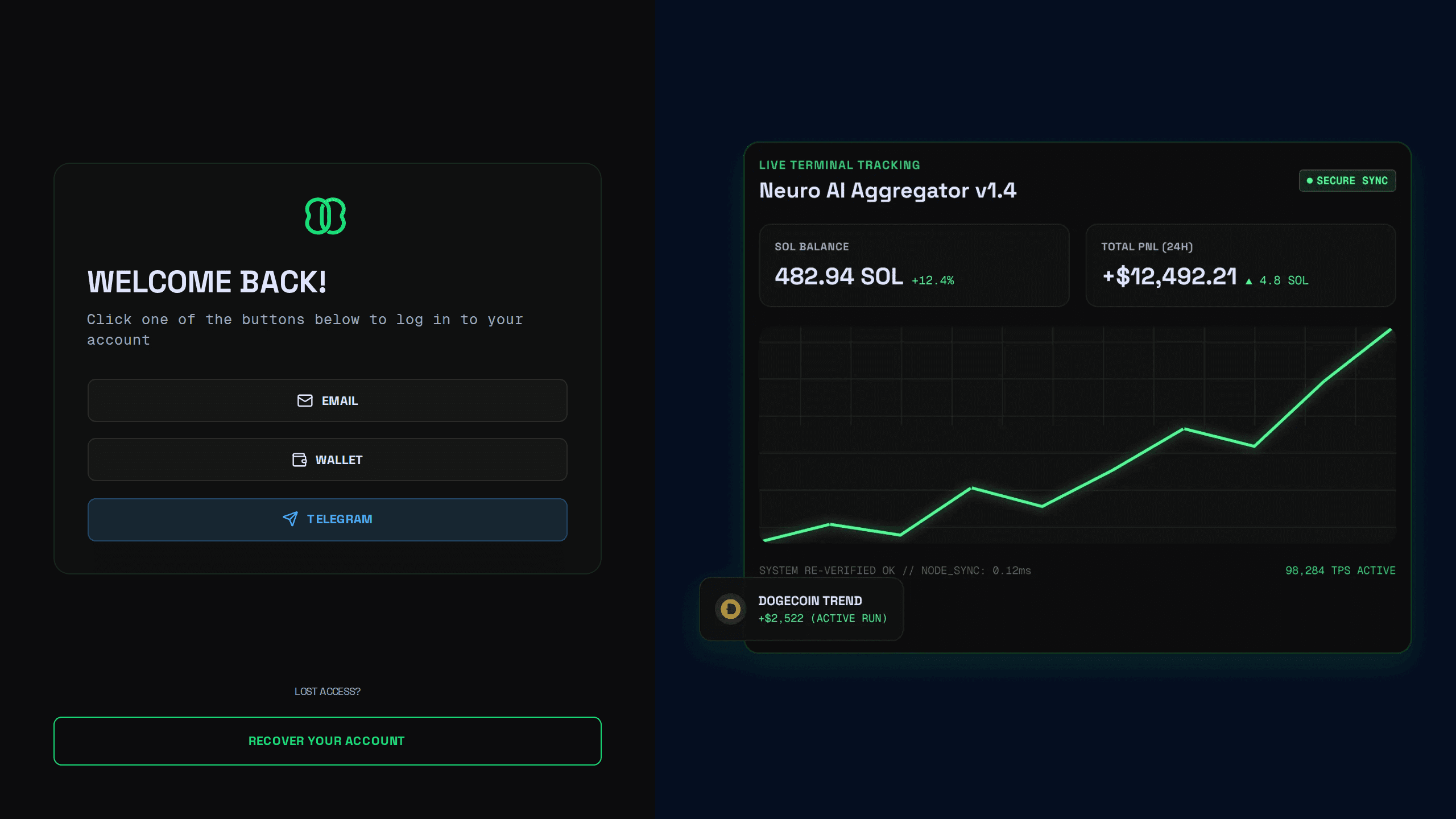
If you’re not signed in on this browser, Neurobot shows its sign-in page first. Sign in the way you usually do (email, wallet or Telegram). You come straight back to the connection request afterwards.
Check who is asking
The connection request shows:
- App: the name the assistant gave itself, such as Claude, ChatGPT or Gemini.
- Website: the assistant’s website, if it gave one.
- Sends you back to: where your browser goes after you answer. This is the part to check. It should be your assistant’s own address, such as
claude.ai,chatgpt.comorgemini.google.com, orlocalhostfor Claude Code, Cursor and Gemini CLI.
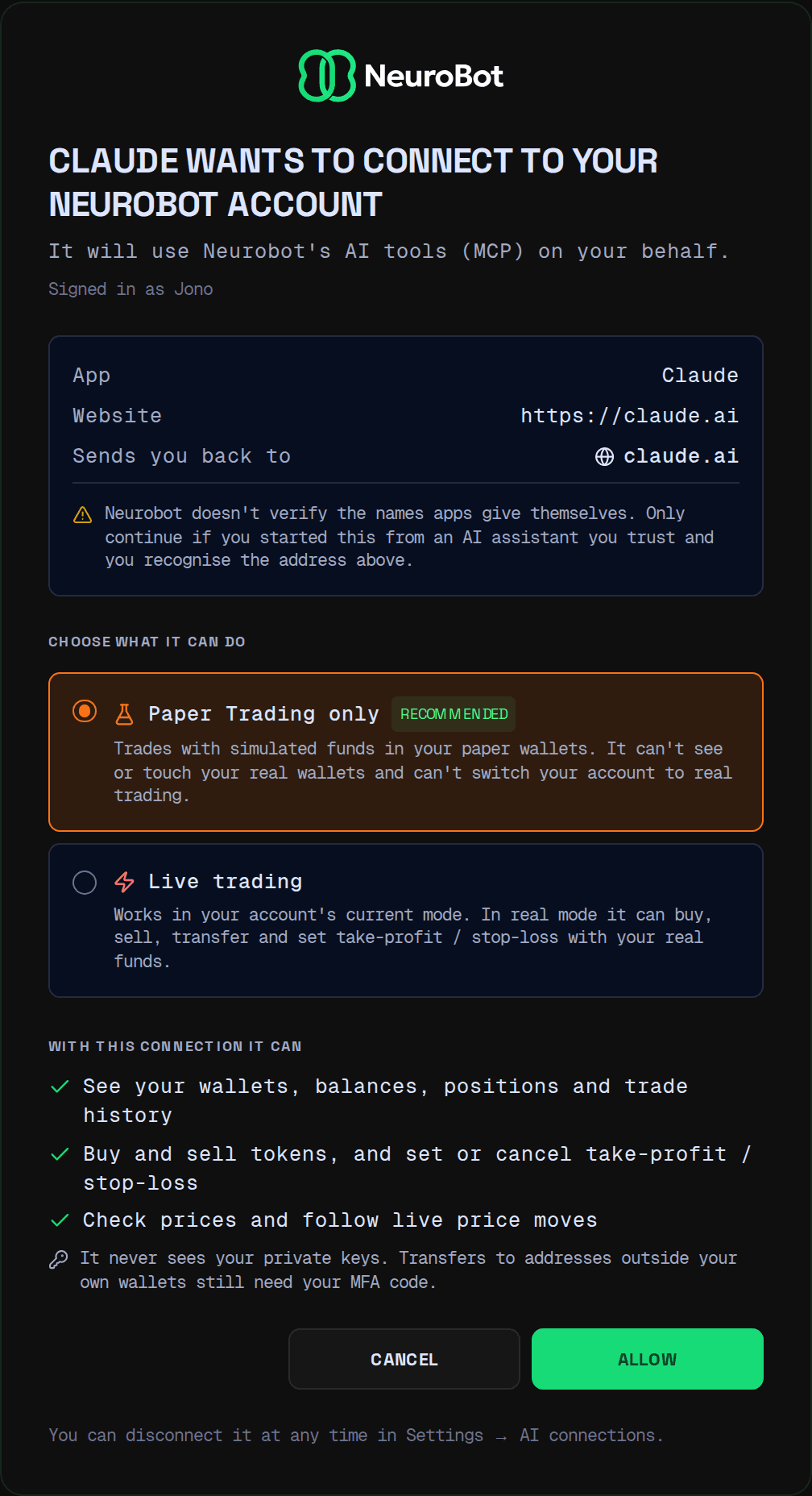
Neurobot can’t verify the names apps give themselves. Only continue if you started this yourself, from an assistant you trust, a moment ago. If a link to this page reached you some other way, select Cancel.
Choose what it can do
- Paper Trading only (selected for you, and the one to start with): the assistant trades with simulated funds in your paper wallets. It can’t see or touch your real wallets, and it can’t switch your account to real trading, even while your account is in real mode on the dashboard or in the Telegram bot.
- Live trading: the assistant works in your account’s current mode. In real mode it can buy, sell, transfer and set take-profit / stop-loss with your real funds. If your account has two-factor authentication on, you enter your authenticator code to allow this.
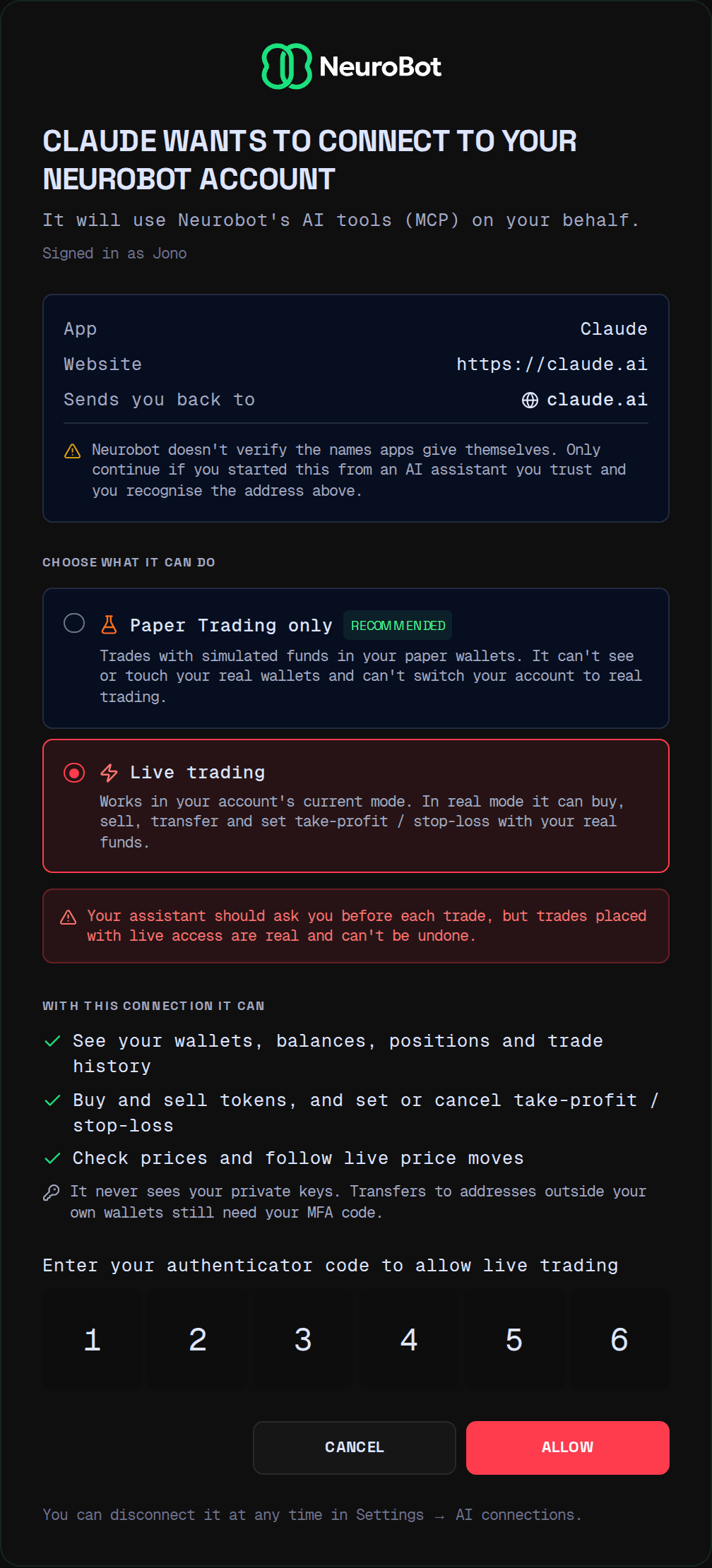
Whichever you choose, the assistant never sees your private keys, and sending funds to an address outside your own wallets still needs your authenticator code.
Allow, and go back to your assistant
Select Allow. Neurobot sends you back to your assistant, which is now connected.
If you changed your mind, select Cancel instead. The assistant is told you declined, and nothing is connected.
Try it
Ask your assistant something like:
What’s my Neurobot account mode, and what’s in my paper wallet?
It should answer with your mode, which wallets it can see and their balances. Then try a small trade:
Buy 0.1 SOL of
<token address>in Paper Trading, then put a 20% stop-loss on it.
Your assistant asks you to approve each trade before it’s placed. Keep that approval on.
See and disconnect your assistants
On the dashboard, open Settings → AI connections. Each connected assistant is listed with what it may do (Paper Trading only or Live trading), when you connected it and when it last did something.
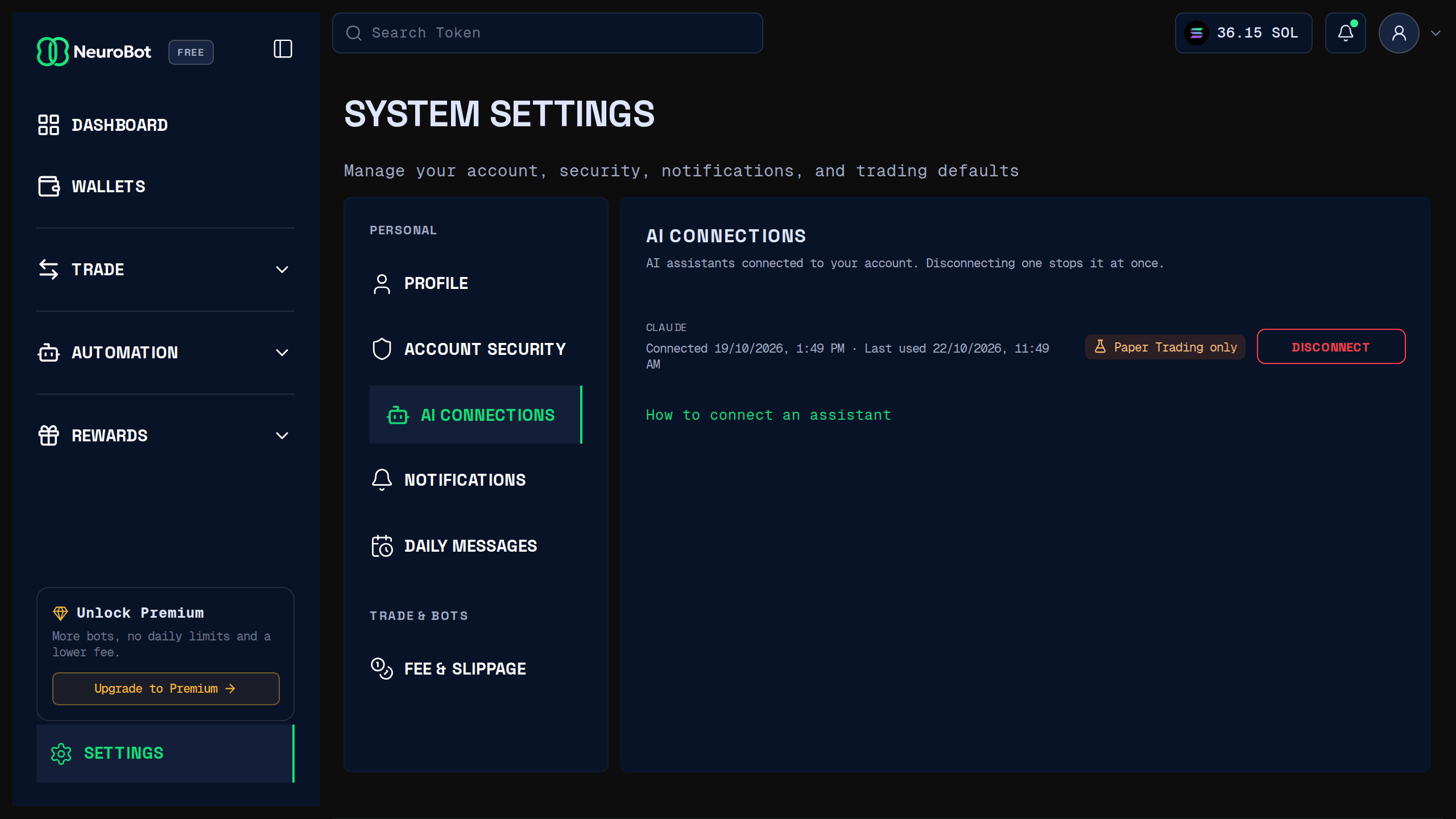
Select Disconnect and confirm to end a connection. It stops working straight away: the assistant’s next request is refused.
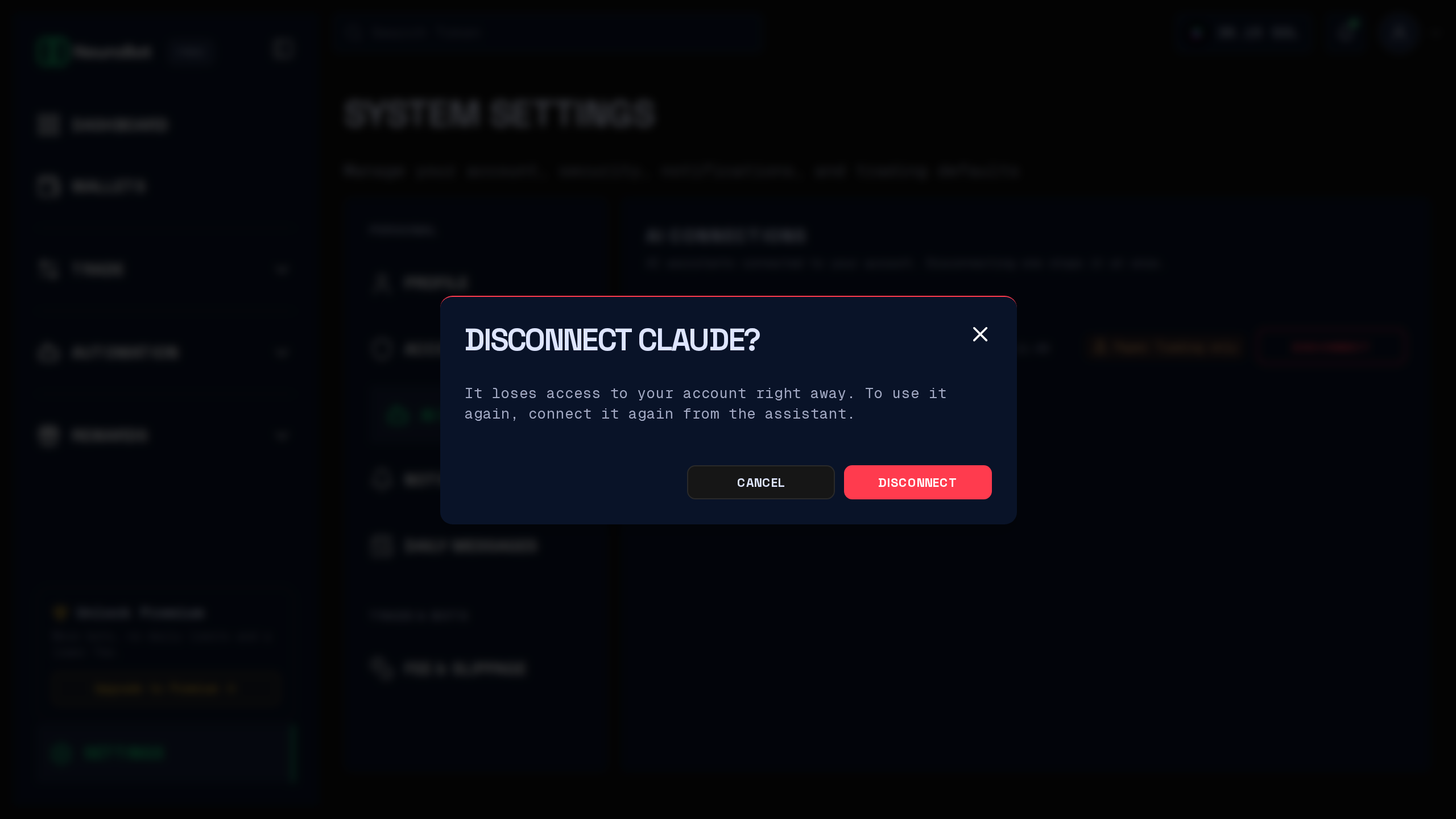
To move an assistant from Paper Trading only to live trading, or back, disconnect it and connect it again.
If something goes wrong
- “This request has expired”: a connection request lasts 10 minutes. Go back to your assistant and connect again.
- Live trading can’t be selected: the assistant asked for Paper Trading only. Change that in the assistant if it offers the option.
- The assistant says it isn’t authorized, after working before: the connection was disconnected, or it went unused for 30 days. Connect again from the assistant.
- No custom connector or app option in the assistant: it depends on the assistant’s plan, region or account type (see the notes for your assistant in the first step).
For more on what the assistant can do, see Trade from an AI assistant (MCP).